
Beginner Tutorial
This tutorial page will make it even easier for you to use our website.
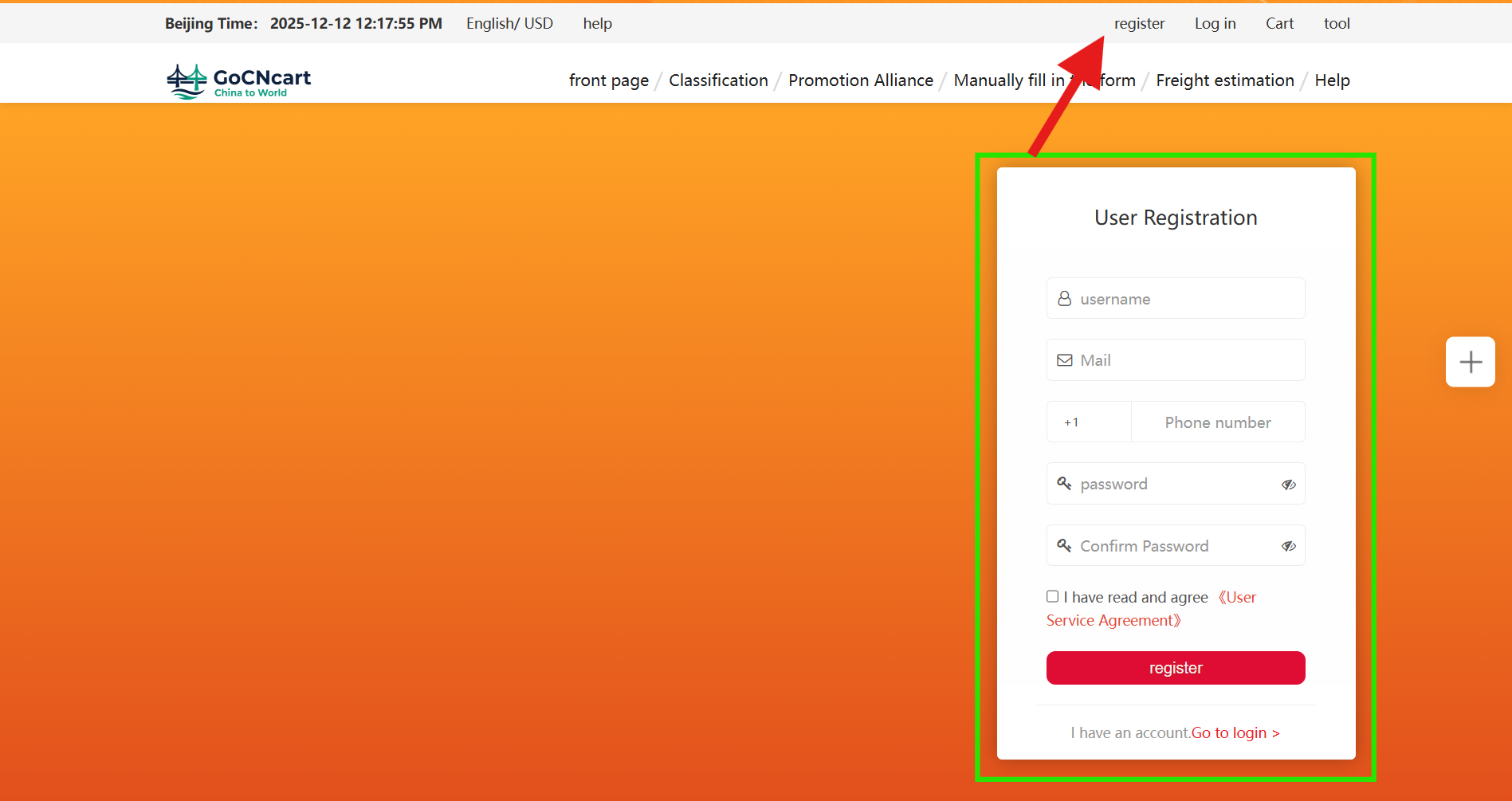
1 Register your account
Welcome to GoCNcart!
To start using our website—from purchasing products to accessing all available features—you first need to complete the registration process. Simply provide your name/username, email, mobile number, and preferred password to create your account.
Alternatively, you can register quickly through the Log In option by using the Gmail account already logged into your browser.
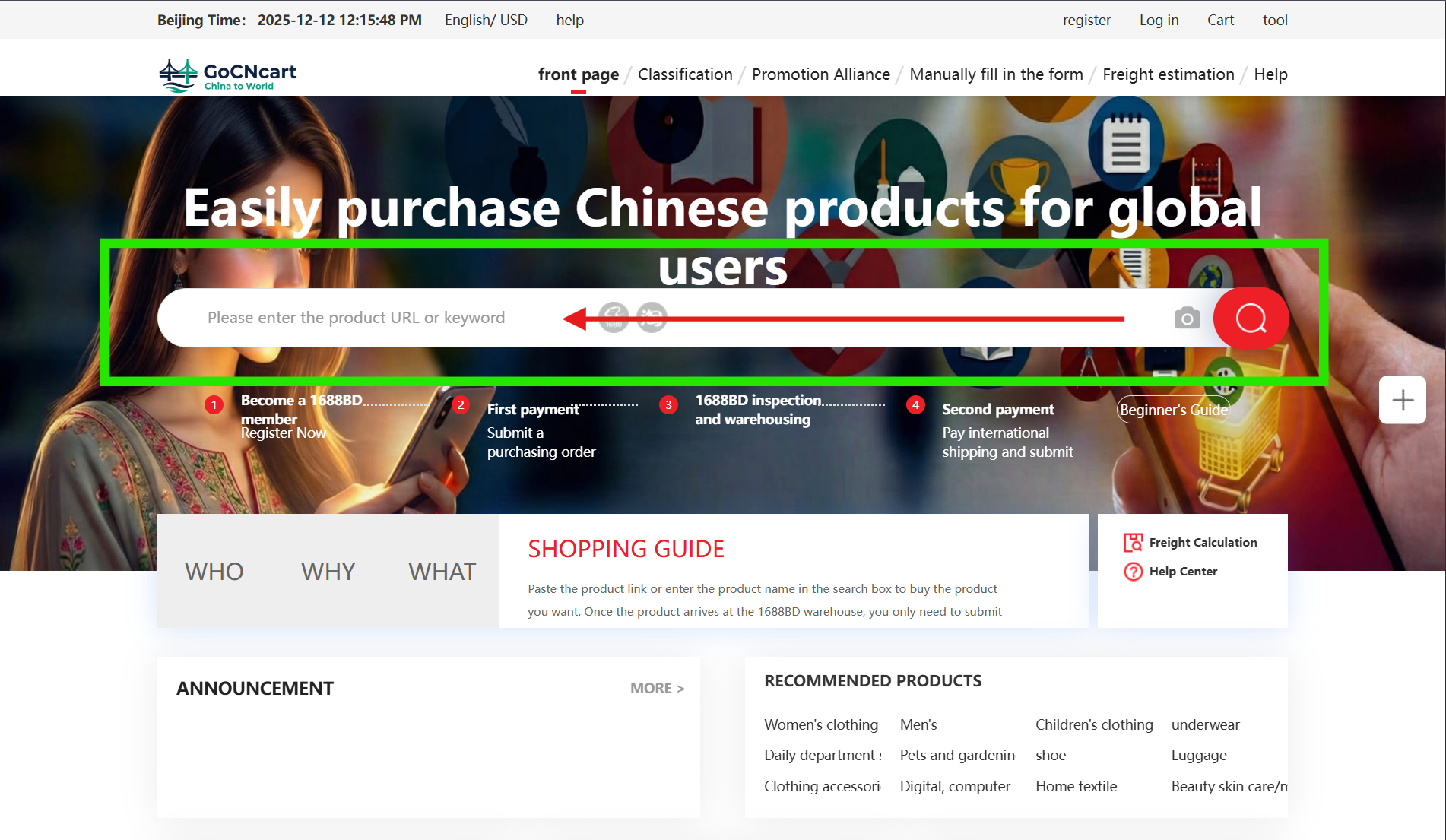
2 Search products on the homepage
Go to the homepage of the website.
In the search bar, you can find your desired products by entering text, an image, or by pasting product links from 1688.com or Taobao.com.
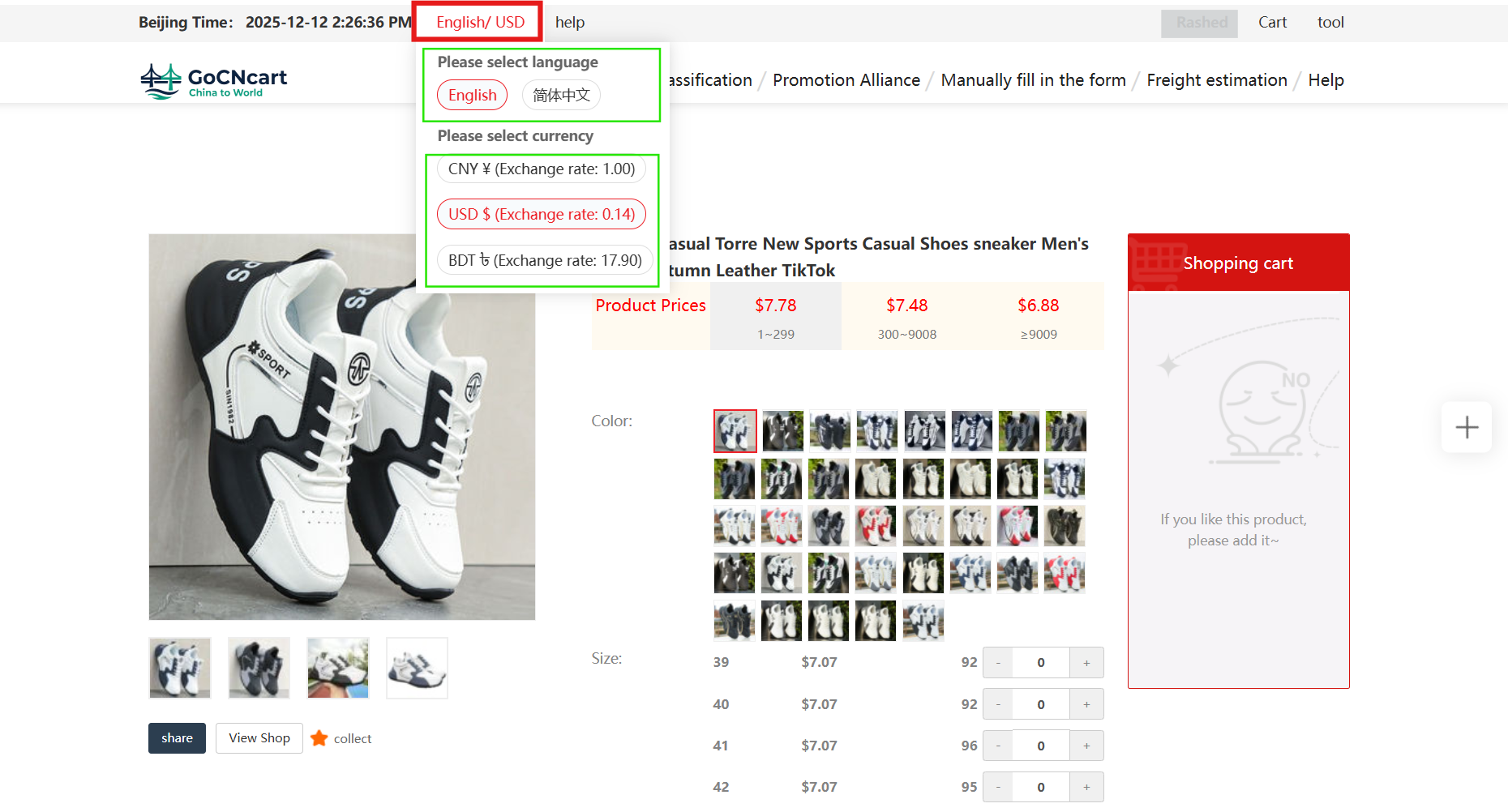
3 Choose your currency and language
You can also change the website to your preferred currency and language for a more comfortable browsing experience.
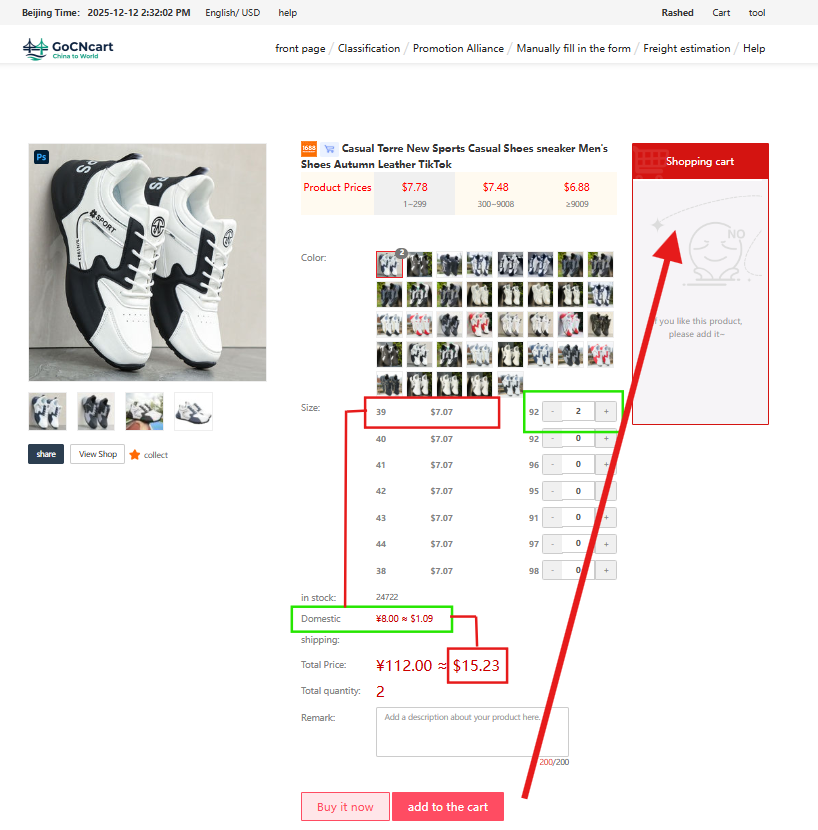
4 View pricing and add to cart
Select your desired product.
In the red‑marked box, you will see the original price of the product, and in the green‑marked box below, you will find the domestic charge (the delivery fee from the Chinese supplier to our receiving warehouse).
Total price = product price + domestic charge.
Click the “Add to Cart” button below to add the item to your Shopping Cart.
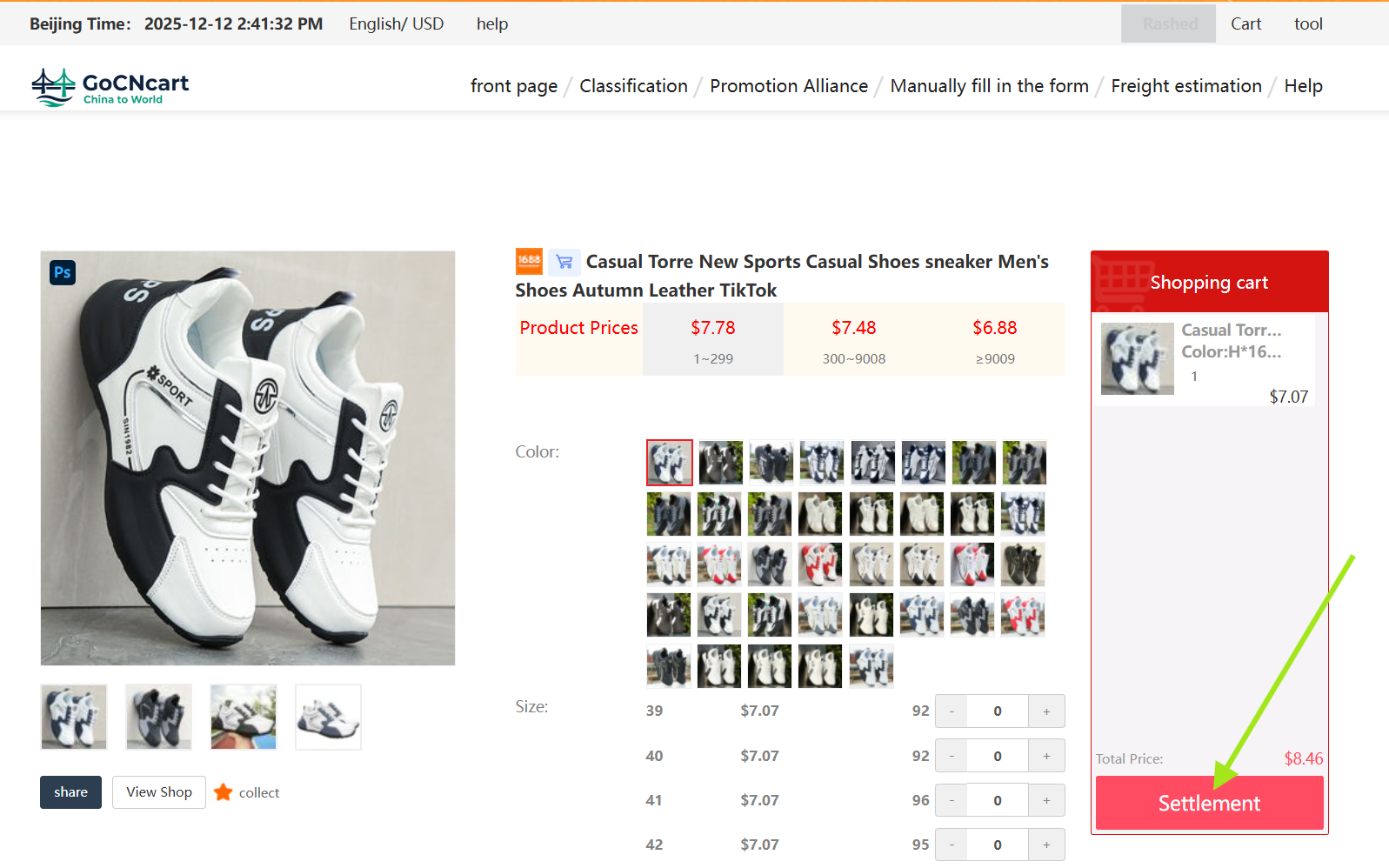
5 Manage your Shipping Cart & proceed to Settlement
All items that you add to your cart will be collected in the Shipping Cart box on the right side of the screen. You may remove any item from this box if necessary.
To proceed with the order process for items in your cart, click the Settlement button.
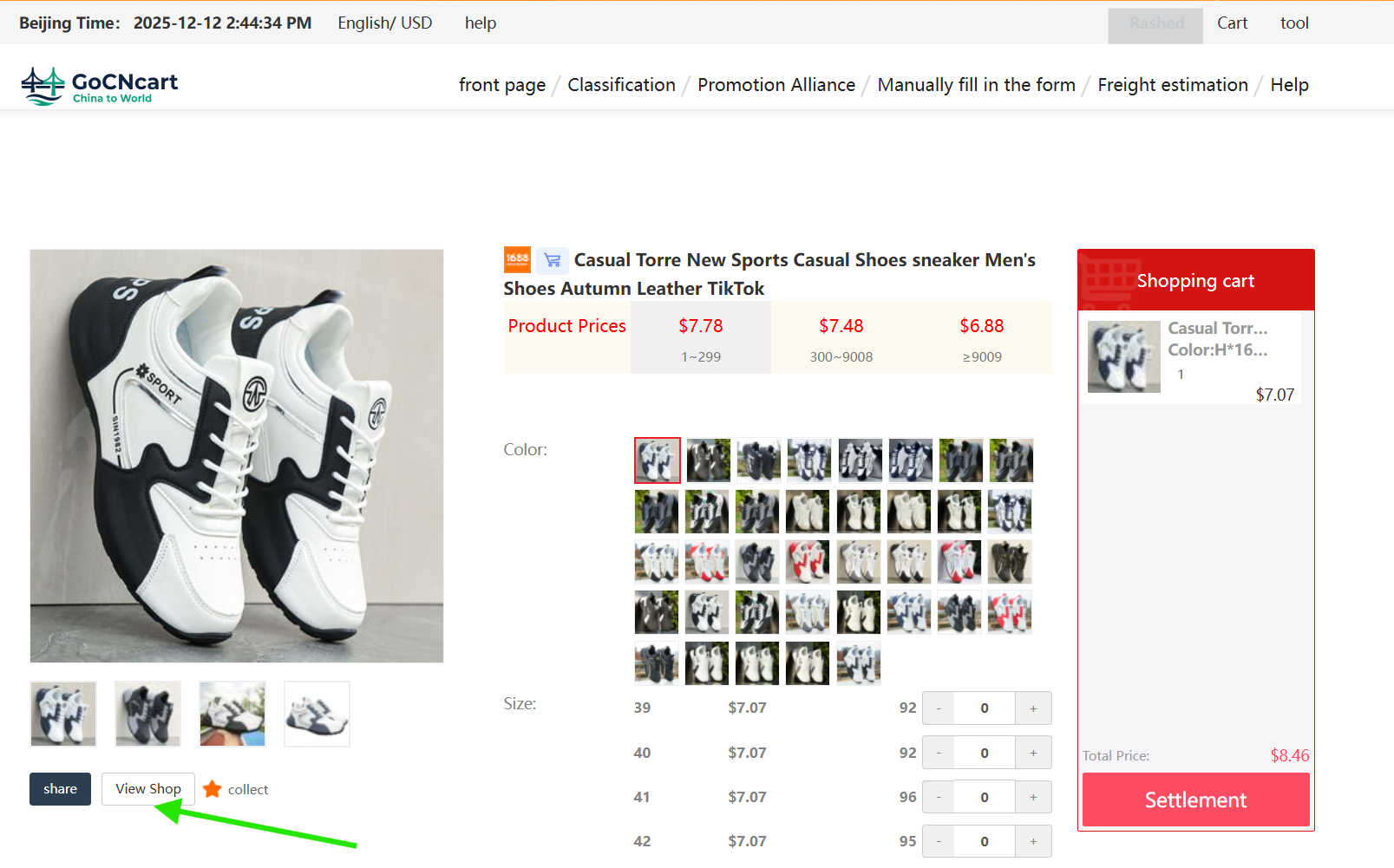
6 Explore the supplier’s shop
On the product details page, the View Shop button (green highlight) opens the manufacturer/supplier’s product gallery.
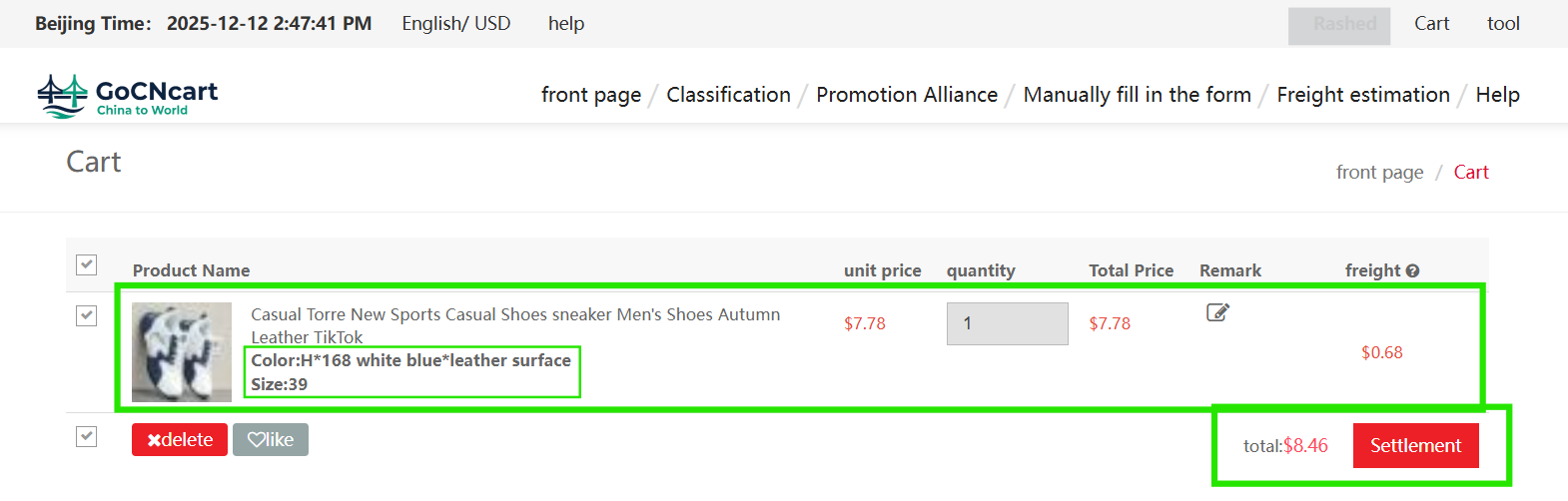
7 Review order details before confirming
See a detailed breakdown of each item: size, color, type, quantity, unit price, and domestic charge per product.
Please review carefully. If everything looks correct, click Settlement to proceed.
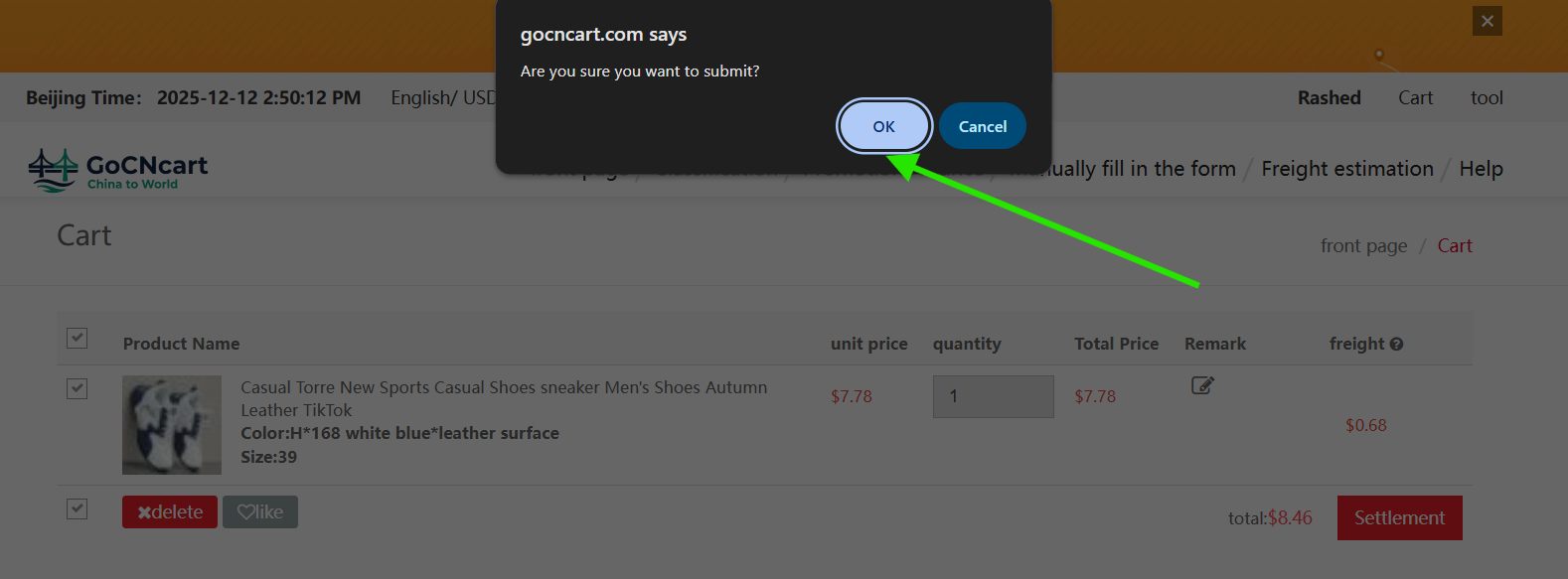
8 Confirm the pop‑up
A confirmation pop‑up will appear. Click OK to continue.
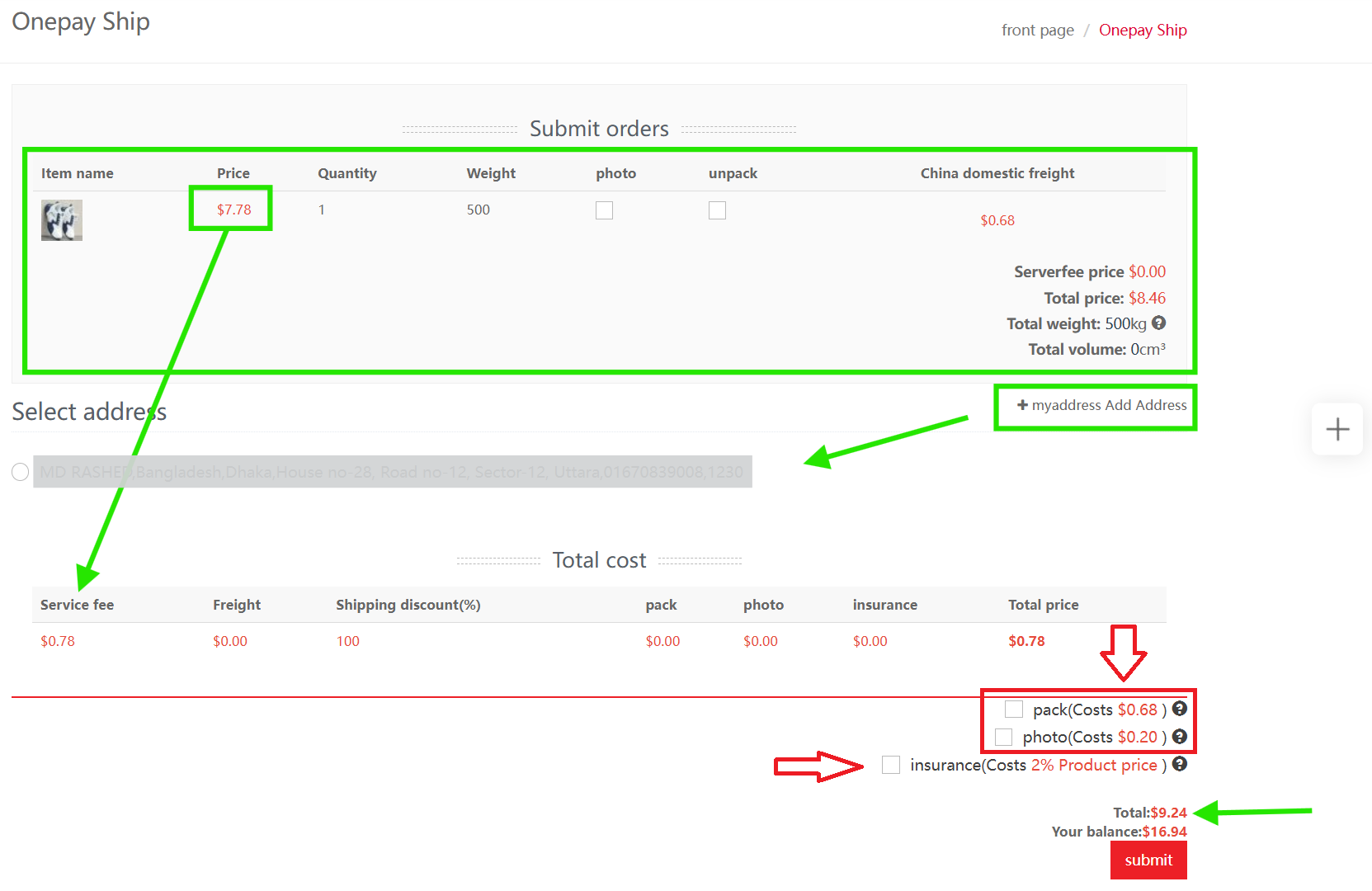
9 Onepay Ship — fees & optional services
Here you will again see your product price and domestic charge. We apply a 10% service fee on the product price only, as stated on our About Us page.
Optional add‑ons (checkboxes):
- Pack: Request packaging customization after the item reaches our warehouse.
- Photo: Request additional product photos.
- Insurance: Adds 2% for 100% coverage. Details on Insurance and Compensation.
If no address appears under Select Address, you likely didn’t add one during registration. Click the green “My Address – Add Address” button, choose your country, and complete your full delivery address.
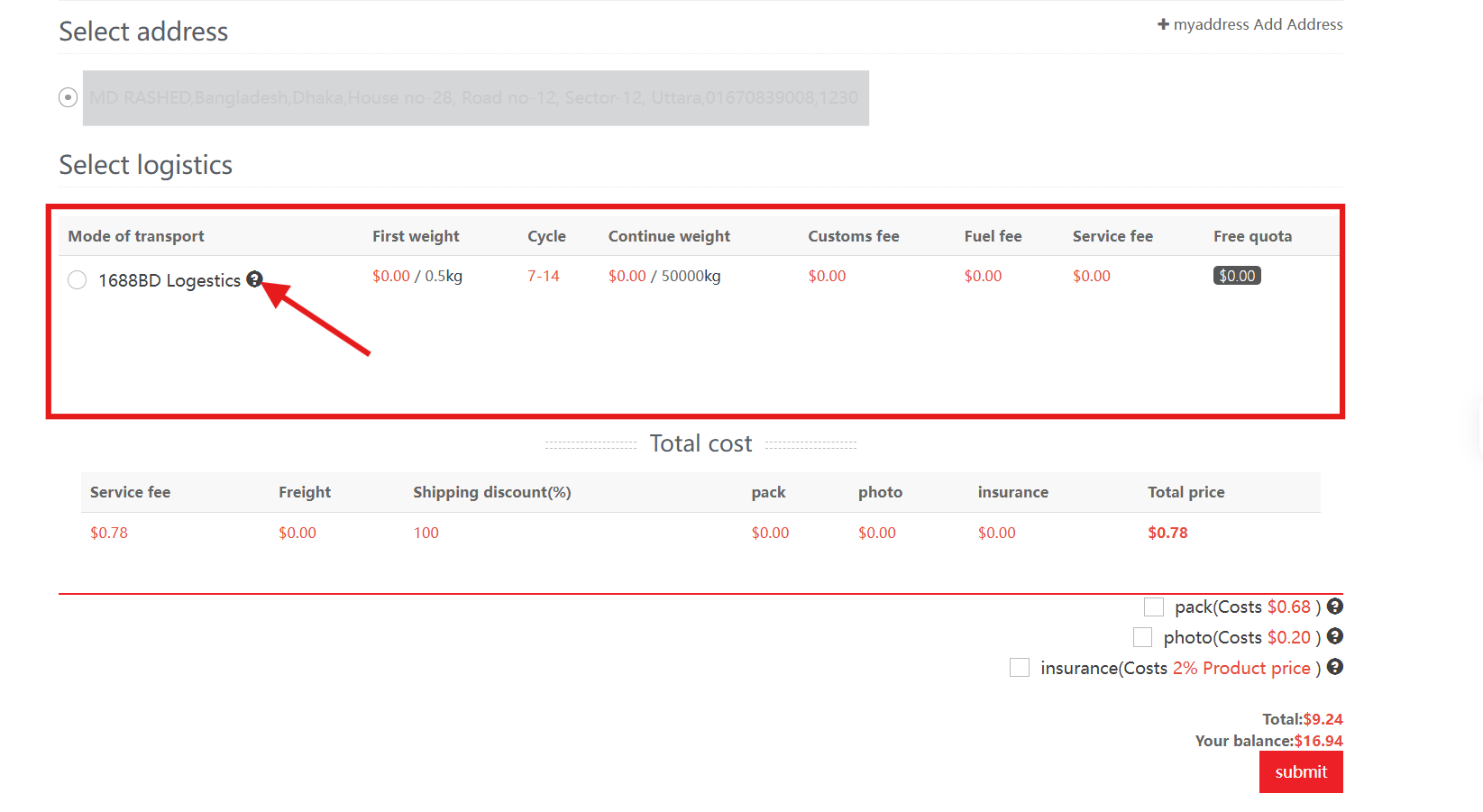
10 Select address & transport mode
When you select and checkmark your local delivery address, the Mode of Transport box appears automatically.
- Bangladesh addresses: You’ll see 1688BD Logistic with a zero charge at this stage. Final delivery charges are weight‑based and calculated after your item arrives at our Dhaka office.
- Outside Bangladesh: Shipping charges will be added via DHL or FedEx based on your selection.
Click Submit to proceed.
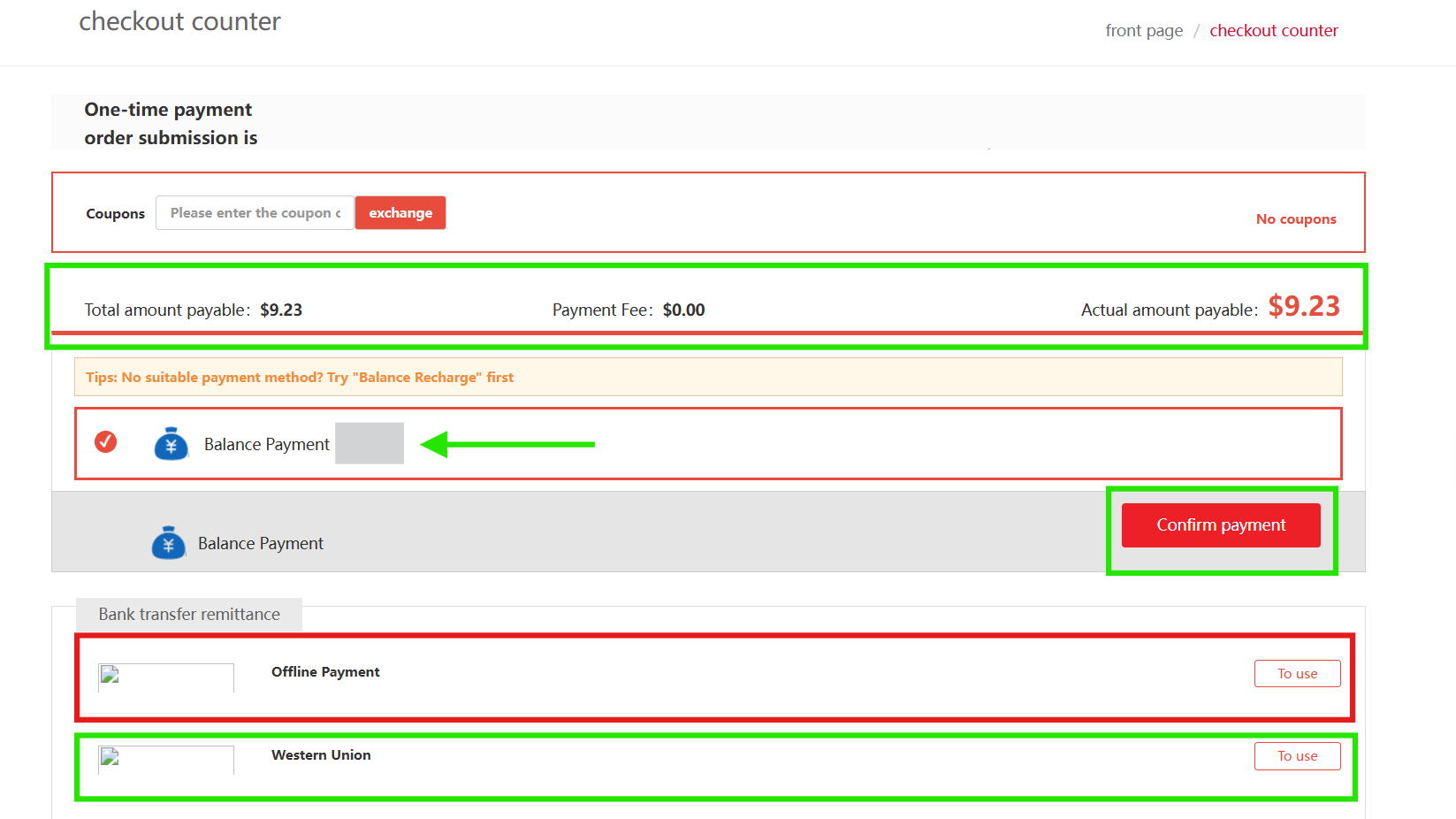
11 Checkout Counter — pay or remain pending
On the Checkout Counter page, you’ll see the Total Payable Amount, and just below it, your Your Balance (recharged balance).
- If your balance ≥ payable amount: click Confirm Payment. The amount will be deducted and the order is paid.
- If your balance is insufficient: the order remains in Payment Pending status.
Unpaid orders appear under “One‑Time Payment Order” in your account. If not paid within 7 days, the order will be deleted automatically.
To recharge your balance, see our Recharge Method page.
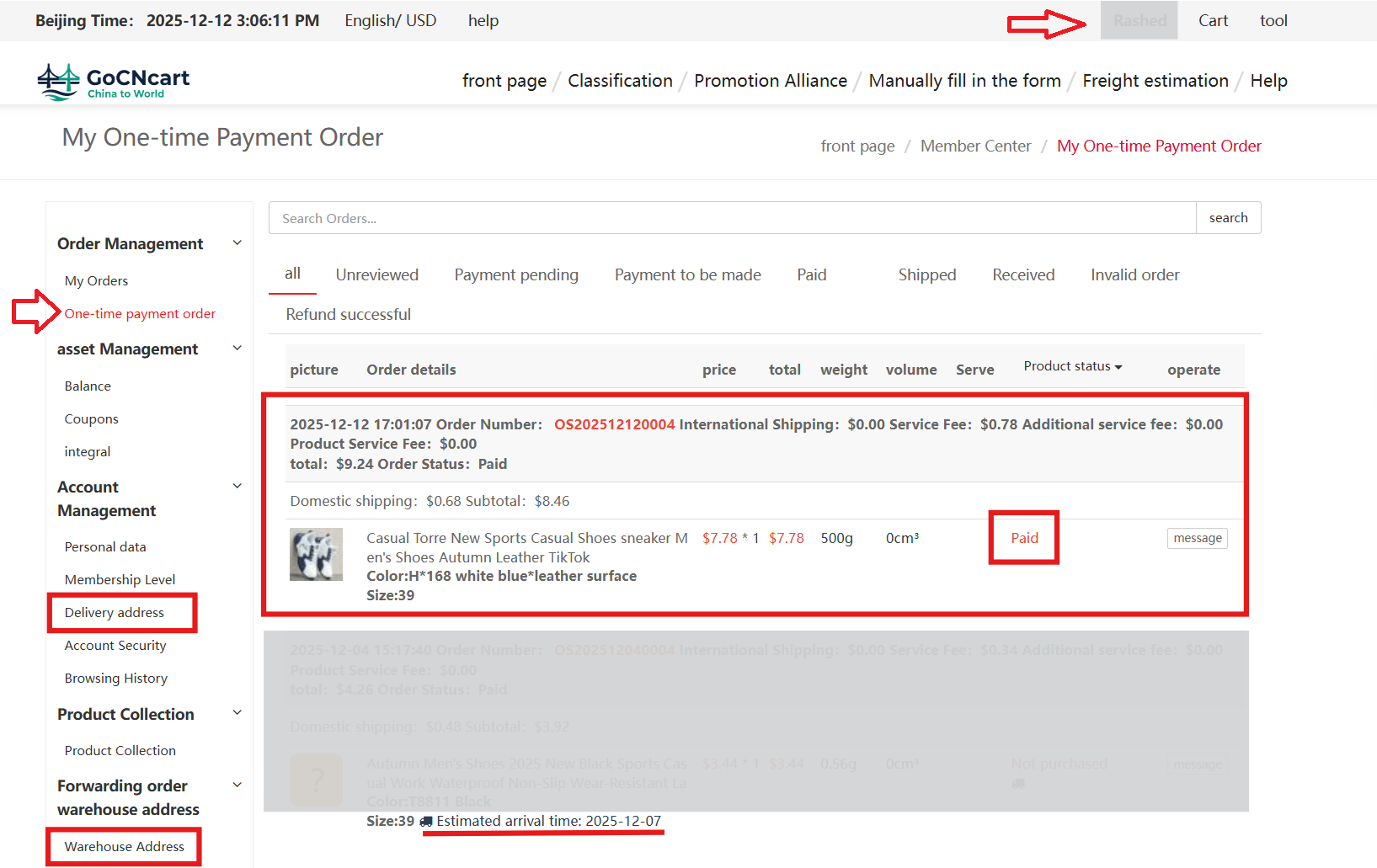
12 Account settings — track orders & manage addresses
Click your registered Account Name (top bar) to open Account Settings.
- In One‑Time Payment Order, view both paid and payment‑pending orders. After we confirm purchase on the original website, statuses update to:
- “Purchase” — order placed successfully
- “Mail” — item is being shipped
- Delivery Address — your personal receiving address (add/update here).
- Warehouse Address — our receiving warehouse (use this for Door‑to‑Door shipping after informing us).
To view this entire tutorial in Bangla, click here.
To watch the video tutorial, click here.